


Introduction
As of version 12.1 Mod02 (v12.1.2), Db2 includes Azure BLOB as one of the supported vendors for its remote storage access. In fact, the only other vendor still supported in Db2 v12.1 is AWS S3. The other vendors present in previous Db2 versions (such as the SoftLayer) didn’t make it through the latest upgrade.
Since the addition of the Azure BLOB object storage is relatively new in the Db2 world, I decided to test just how well it works.
The Prerequisites
In order to start testing the Azure BLOB functionality, an active Azure account is required, which allows access to the Azure Portal where practically everything happens in the Azure world.
I have set up my Azure account quite a while ago and it was a very simple process, but I will not go into the details here – mostly because I don’t remember anything particular about it (other than it had been very simple and quick… and didn’t cost a cent).
From within the Azure Portal, you should set up your Azure Storage Account and within it one (or more) Storage Containers. This will provide you with the following information, required later:
- Storage Account Name
- Endpoint (HTTPS address to remotely connect to your storage)
- Container Name (or names)
- Password (Storage Account Access Key)
(Note: the same can be done via the Azure CLI, but I haven’t tested this option)
Next, of course, you will need a server with Db2 v12.1.2 (or later) installed on it. For the purposes of this testing, I created an Azure Virtual Machine running RHEL9.4, with 2 vCPUs and 4GB RAM – just enough for my needs – and then installed Db2 v12.1.4 CSB (the latest level available at the time) on top of it.
We will also need to install the Azure CLI on the Db2 server, in order to enable the execution of Azure BLOB commands from the command line.
To get this done, I ran the following commands:
[as root]
rpm --import https://packages.microsoft.com/keys/microsoft.asc
dnf install -y https://packages.microsoft.com/config/rhel/9.0/packages-microsoft-prod.rpm
dnf install azure-cli
and to confirm the installation was successful, this:
az -v
  azure-cli                         2.87.0
  core                              2.87.0
  telemetry                          1.1.0
  Dependencies:
  msal                              1.36.0
  azure-mgmt-resource               24.0.0
  Python location '/usr/bin/python3.12'
  Config directory '/home/db2inst1/.azure'
  Extensions directory '/home/db2inst1/.azure/cliextensions'
  Python (Linux) 3.12.1 (main, Apr 23 2026, 00:00:00) [GCC 11.4.1 20231218
(Red Hat 11.4.1-4)]
  Legal docs and information: aka.ms/AzureCliLegal
  Your CLI is up-to-date.
(all above according to the Azure documentation.)
To simplify the execution of the Azure commands from the command line, I configured the authorization parameters via the following environment variables (these can be added to the Db2 instance owner’s .bashrc file):
export AZURE_STORAGE_ACCOUNT="<your_storage_account_name>"
export AZURE_STORAGE_KEY="<your_storage_key>"
export AZURE_STORAGE_AUTH_MODE="key"
Configure Db2
Before configuring the remote storage access, we must create a local keystore, which will be used to store the Azure BLOB credentials in the encrypted form:
[as db2inst1]
mkdir ~/keystore
gsk8capicmd_64 -keydb -create -db "/home/db2inst1/keystore/keystore.p12"  -pw "your_password"
-type pkcs12 -stash -pqc false
Next, we configure the Db2 instance to use this keystore (and recycle the instance to activate the change):

With all this done, now we can create (or catalogue) the STORAGE ACCESS ALIAS for the Azure BLOB storage.
Here, I named my alias “DWAZURE” (and hid the password/key for safety reasons):
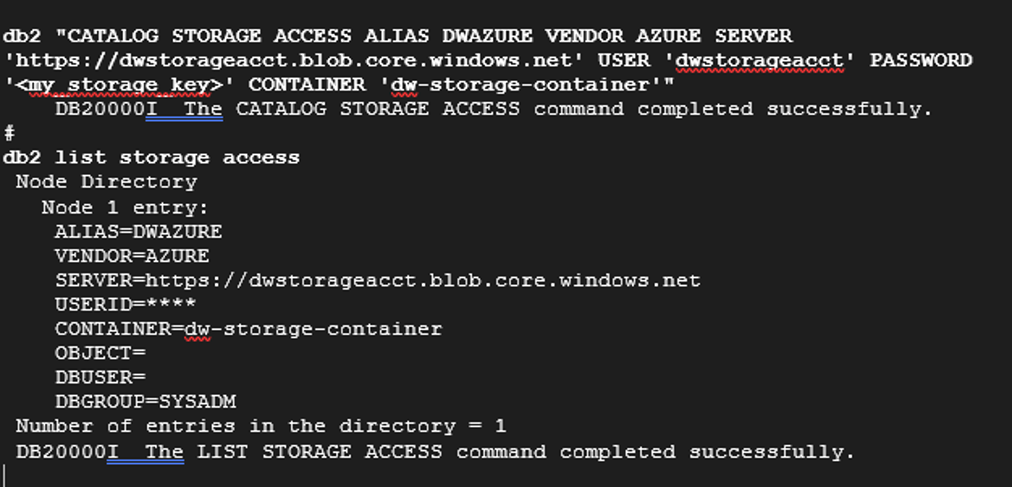
At this point, the Db2 instance (and the contained databases) should be able to communicate with the remote Azure BLOB storage.
So, let’s see how this works in real world!
Test, Test, Test
Create a database
To test the Azure BLOB functionality, I needed a database, so I ran the script which created the standard SAMPLE database:
db2sampl
  Creating database "SAMPLE"...
  Connecting to database "SAMPLE"...
  Creating tables and data in schema "db2inst1"...
  Creating tables with XML columns and XML data in schema "db2inst1"...
  Creating tables with VECTOR columns and VECTOR data in schema "db2inst1"...
  'db2sampl' processing complete.
Backup to Azure BLOB
First test: can I backup the SAMPLE database directly to the Azure BLOB storage, using the previously created STORAGE ACCESS ALIAS?
Here we go:
db2 backup database SAMPLE to DB2REMOTE://DWAZURE/sample-db-backups/sample-backups/
    Backup successful. The timestamp for this backup image is : 20260618134542
Looks like this works!

To verify the backup image indeed made it to the Azure BLOB storage, I ran the following Azure CLI command (remember, Azure CLI had been set up as one of the prerequisites):

The file is there all right, so in conclusion – taking backups to the Azure BLOB storage works just fine!
Log Archive to Azure BLOB
The next thing I wanted to try is if the database can be configured to automatically archive the log files to the (same) Azure BLOB storage?
For this purpose (and also to separate backups and archived logs into different containers), I first created another Azure BLOB container in my Azure Storage Account and named it: sample-logarchive.
I’ve done this via the Azure Portal (so: a clickety-click procedure, but I could also have done it via the Azure CLI command: az storage container create).
Then, I updated the SAMPLE database configuration to activate the log archiving:

Here (again), sample-logarchive is the container name and archived-logs is the virtual (sub)directory within that container where the logs will be archived to.
The above command put the database into the “backup pending” state, so I ran another DB backup to resolve that (and ultimately activate the LOGARCHIVE change):
db2 backup database SAMPLE to DB2REMOTE://DWAZURE/sample-db-backups/sample-backups/
    Backup successful. The timestamp for this backup image is : 20260624135954
Now, there should be two backup images present in my Azure Storage Account:

And there are, so we are good!
OK, so the next thing I wanted to try is to send an archived log to the Azure BLOB storage:
db2 activate db SAMPLE
    DB20000I  The ACTIVATE DATABASE command completed successfully.
db2 archive log for db SAMPLE;
    DB20000I  The ARCHIVE LOG command completed successfully.
To display the contents of the LOGARCHIVE container I ran the command:

And the archived LOG file is indeed there – so in conclusion – the archiving of Db2 logs to Azure works fine (just as well as backups)!
Disaster Recovery
Next on my agenda: what about disaster events – can I recover from those using the Azure BLOB storage?
That is, can I restore (and rollforward) my database directly from the Azure BLOB storage?
Let’s see!
I first took (another) full DB backup, to establish a baseline for the recovery procedure later on:
db2 backup database SAMPLE online to DB2REMOTE://DWAZURE/sample-db-backups/sample-backups/
    Backup successful. The timestamp for this backup image is : 20260624140413
Checking the Azure BLOB storage, the backup image is there OK (together with the two older backups):

Next, (without going into any details here) I ran a job which kept inserting records into a test table called TEST.TEST_TABLE.
As this job was running, the volume of data in the test table kept growing, and LOG files were filled up with transactional data, closed and archived. After a while, there were several archived log files present in the Azure BLOB container:
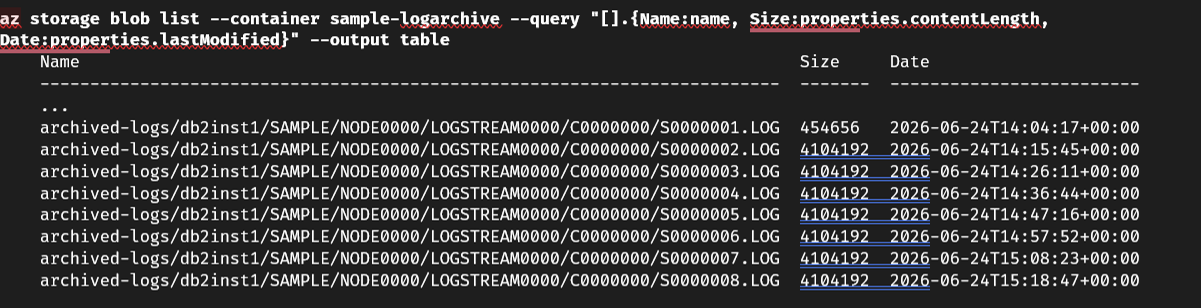
And the current active log in the SAMPLE database was:
db2 get db cfg for SAMPLE | grep -e "First active log file"
    First active log file
This confirmed that all log files closed so far have been successfully archived to the Azure BLOB storage!
When the job completed, this was the TEST table’s final state (i.e. the volume of data it contained):
db2 -x "SELECT COUNT(*) FROM TEST.TEST_TABLE"
     109730
For the sake of this testing, I chose an arbitrary PIT (“Point In Time” – to where the database will be rolled forward in a DR event): 14:45h local time, which was somewhere midway between the job start and end.
To prove the above, I counted the rows in the TEST table up to the selected PIT:
db2 -x "SELECT COUNT(*) FROM TEST.TEST_TABLE WHERE INSERT_TS
< = '2026-06-24-14.45.01.000000'";
    58815
Indeed, this PIT covers approximately half the data in the TEST table (~59k vs. ~110k)!
Next, as a simulation of a DR event, I dropped the whole SAMPLE database:
db2 terminate; db2 deactivate db SAMPLE;
    [done]
db2 drop db SAMPLE;
    DB20000I  The DROP DATABASE command completed successfully.
And then it was the time to try the recovery, directly from the Azure BLOB storage:
First, I restored the database from the latest backup image (taken just before the job was started):
db2 restore database SAMPLE from DB2REMOTE://DWAZURE/sample-db-backups/sample-backups/
taken at 20260624140413
    DB20000I  The RESTORE DATABASE command completed successfully.
Then, I executed a rollforward to the specified PIT.
This was done without copying in advance any archived log files from the Azure BLOB storage to the local disks by hand, but rather leaving it to Db2 to itself obtain the required files from the remote storage:
db2 rollforward db SAMPLE to 2026-06-24-14.45.01 using UTC time and complete;
                                 Rollforward Status
    Input database alias                   = SAMPLE
    Number of members have returned status = 1
    Member ID                              = 0
    Rollforward status                     = not pending
    Next log file to be read               =
    Log files processed                    = S0000001.LOG - S0000006.LOG
    Last committed transaction             = 2026-06-24-14.45.01.000000 UTC
  DB20000I  The ROLLFORWARD command completed successfully.
As we can see, both the database restore and the rollforward have completed successfully (with the rollforward having retrieved log files 001 to 006 from the Azure BLOB storage and processed them)!
The final check: how many rows are there in the TEST table now, after the DR event completed:
db2 backup database SAMPLE to DB2REMOTE://DWAZURE/sample-db-backups/sample-backups/
    Backup successful. The timestamp for this backup image is : 20260618134542
The number of rows in the table was just as expected, so we can conclude that Db2 can pull the backups and archived logs directly from the Azure BLOB storage as well as it can send them there!
Which brings us to the end of this blog article. But before we wrap it up:
What about other Linux distros?
Yes, all of the above testing was done on a RHEL9.4 Azure virtual machine, so what about other Linux distributions, such as Ubuntu and SUSE – can all this work on those platforms as well?
In short – it can’t, and I have learned this the harder way (by setting up an Ubuntu VM and running the tests), before realising that the following is clearly stated in the Db2 documentation:
The Microsoft Azure Blob Storage is only supported on LinuxAMD64 RHEL9.4 or later.
(https://www.ibm.com/docs/en/db2/12.1.x?topic=storage-remote-requirements)
I simply failed to notice this very crucial info in the Db2 KC when I started playing with the Azure BLOB storage, and so – oblivious to the facts – did some testing on the Ubuntu platform which produced some unexpected results along the way:
Even if Ubuntu is an officially unsupported platform, some bits still do work there:
- Taking backups works OK ✅
- Archiving log files works OK ✅
- Restoring fails with SQL2062N ❌
But all in all, anyone who wants to use the Azure BLOB storage with Db2 should certainly plan their Db2 environments around a RHEL9.4 (or higher) platform!